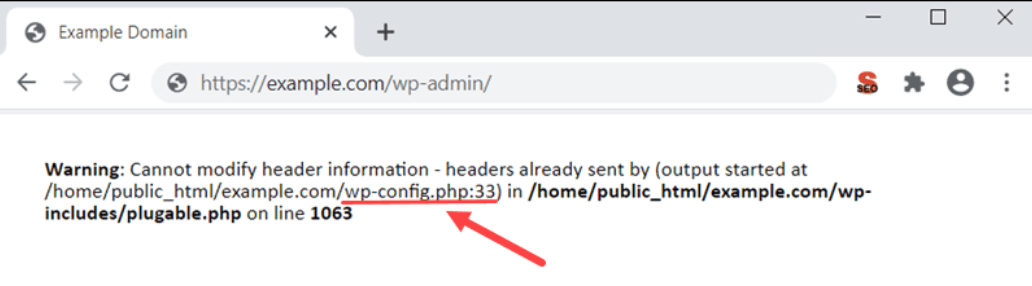
It is an incredibly disruptive error for both store owners and customers: a user fills out their information, hits login or clicks “Place Order,” and instead of moving to the dashboard or thank-you page, the site locks up. The user is trapped on a blank white screen, or a raw line of ugly warning text bleeds onto the top of the live storefront.
When you check your site’s debug outputs, you will find a warning stating Cannot modify header information. The standard, generic advice found on low-level forums is to “reinstall your theme” or “disable all plugins.” This does nothing to solve the underlying problem. This error indicates a strict syntax conflict where code or server assets are accidentally pushing data to the visitor’s browser prematurely, breaking the site’s capability to safely redirect traffic.
Below is the deep-tech cause of this layout blockage and the exact code-level fixes to clear the redirect loop and get your store pathways running smoothly.
The Error Snippet
When a user hits a broken redirect pathway on login, registration, or checkout, the system outputs a trace that looks exactly like this:
Plaintext
Warning: Cannot modify header information - headers already sent by (output started at /wp-content/plugins/woocommerce/includes/class-wc-checkout.php:12) in /wp-includes/pluggable.php on line 1251
Why This Happens (The Real Technical Cause)
To understand this error, you need to look at how a web server communicates with a browser. When a server processes a WordPress page, it must send data in a strict two-step sequence:
- The HTTP Headers: Hidden configuration instructions (like page redirect commands, status codes, and cookies).
- The Output Body: The actual visual data (HTML code, text, spaces, and images).
The server must finish sending all HTTP Headers before it begins sending the Output Body.
The Cannot modify header information warning occurs because WooCommerce attempts to issue an HTTP redirect command (using the wp_redirect() function inside pluggable.php) to move a customer to a new page. However, a file on your server (often a custom code snippet, an active theme asset, or an updated plugin file) has already accidentally sent output data to the browser beforehand.
Once even a single byte of body data is sent, the server permanently locks the header section. When WooCommerce subsequently tries to modify the headers to perform the redirect, PHP throws a fatal warning and halts the redirect process entirely, leaving the customer stranded.
The three most common culprits pushing premature output are:
- Whitespaces or Blank Lines: Extra blank spaces or empty lines located before the opening
<?phptag or after the closing?>tag inside your theme’sfunctions.phpfile or a custom plugin file. - UTF-8 BOM (Byte Order Mark): Saving a code file using an unoptimized text editor that invisibly inserts a hidden formatting character at the very beginning of the script.
- Active PHP Notices/Warnings: A different, minor plugin throwing a small “Notice” or “Deprecated” warning directly into the HTML stream before the checkout code finishes executing.
How to Fix It Safely (Step-by-Step Solutions)
Follow these direct procedural steps to clean your code files and configure your server to handle background redirects without crashing.
1.Locate the exact file causing the premature output:Step 1.
Look closely at your error message. It will always explicitly name two separate files. The second file mentioned (pluggable.php) is simply the victim that failed to execute the redirect. The first file mentioned is the real culprit that started the output early.
For example, if it says output started at /wp-content/themes/child-theme/functions.php:42, line 42 of that specific file is where your fix needs to happen.
2.Remove trailing spaces and clean the PHP tags:Step 2.
Log into your server via FTP or File Manager and open the culprit file identified in Step 1. Check the absolute top and bottom of the file:
- Ensure there are zero blank lines or spaces before the opening
<?phptag. - If the file ends with a closing
?>tag, delete the closing tag entirely. WordPress does not require closing PHP tags at the end of files, and removing them safely prevents accidental trailing whitespaces from breaking your site headers.
3.Enable Output Buffering in your server configuration:Step 3.
If you have multiple plugins throwing minor structural notices that you cannot easily patch individually, you can force your server to collect all output data in a temporary memory buffer before sending it to the browser. This allows redirects to execute safely regardless of background notices. Open your site’s wp-config.php file and add this command line directly below the opening database declarations:
PHP
ob_start();
Alternatively, if you have access to your server’s php.ini configuration file, locate the output buffering rule and change it to:
Ini, TOML
output_buffering = On
4.Force clean background redirects via a fallback filter:Step 4.
To completely bulletproof your WooCommerce checkout page from header conflicts, you can add an explicit fallback filter to your child theme’s functions.php file. This tells WordPress that if a standard header redirect fails due to a code conflict, it should instantly switch to a clean JavaScript-based redirect instead:
PHP
add_filter( 'wp_redirect', function( $location, $status ) {
    if ( headers_sent() && ! did_action( 'wp_footer' ) ) {
        echo '';
        echo '';
        exit;
    }
    return $location;
}, 10, 2 );