It is one of the most frustrating experiences for any web administrator or digital marketer: you open a critical landing page to make an edit, but the editor panel freezes into an infinite loading loop—the notorious Elementor Gray Screen of Death. The widget panel stays blank, the loading wheel spins forever, and you cannot save your layout changes.
When you inspect your server’s backend debug files, you find an explicit memory exhaustion fatal error pointing to elementor/core/base/document.php. Standard help documentation usually suggests simply “deactivating plugins” or “reverting your theme.” This is temporary advice that ignores the actual constraint. This error indicates that your server’s PHP processing memory ceiling is too low to parse the modern, complex tree structures (Flexbox containers and deeply nested layouts) of your page configurations.
Below is the deep-tech cause of this layout freeze and the exact server-level modifications needed to lift the limits and restore your editing workspace instantly.
The Error Snippet
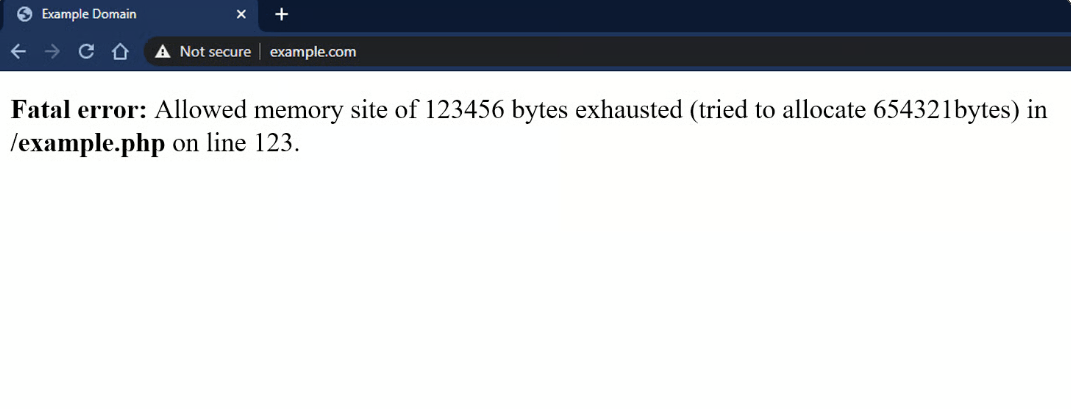
When the Elementor editing grid fails to initialize or crashes midway through building a landing page layout, your server’s error_log or live debugger will output this precise trace:
Plaintext
PHP Fatal error: Allowed memory size of 134217728 bytes exhausted (tried to allocate 20480 bytes) in /wp-content/plugins/elementor/core/base/document.php on line 248
Stack trace:
#0 /wp-content/plugins/elementor/core/base/document.php(512): Elementor\Core\Base\Document->get_elements_data()
#1 /wp-content/plugins/elementor/core/base/document.php(960): Elementor\Core\Base\Document->get_elements_raw_data()
Why This Happens (The Real Technical Cause)
The file document.php is the primary engine component responsible for taking your front-end landing page layouts, scanning their metadata properties, and converting them into a massive, nested PHP multi-dimensional array during editor initialization.
This memory crash triggers due to an Array Recursion Overflow meeting a strict server execution cap.
[Server RAM Ceiling: e.g., 128MB]
               ▲
               │  (Crash occurs when layout data exceeds this limit)
               ▼
[Complex Layout Tree: Sections + Containers + Nested Widgets]
               ▲
               │  (Parsed recursively by document.php)
[WordPress Core Engine + Active Plugins + Theme Metadata]
When you load a page containing extensive layout layers, multiple variations, custom display conditions, or heavy add-on widgets, document.php loops through every element recursively to pull its CSS styling parameters and dynamic content controls. If your server’s internal configuration allocation (memory_limit) is set to standard default baselines—such as 128MB (indicated by 134217728 bytes in the error above)—the recursive array parsing uses up all available working RAM before finishing the layout map. PHP instantly halts execution to protect the server from completely crashing, which cuts off the editor communication mid-stream and locks you in the infinite loading loop.
How to Fix It Safely (Step-by-Step Solutions)
Follow these direct procedural steps to expand your web server’s runtime limits and optimize the page builder engine to bypass the memory blockage.
1.Elevate PHP limits inside the WordPress application core:
Step 1.
Log into your server file architecture using an FTP client or your hosting provider’s File Manager. Locate and edit the wp-config.php file in your root folder. Append these two explicit directives near the top of the script, right beneath the database credential lines:
PHP
define( 'WP_MEMORY_LIMIT', '512M' );
define( 'WP_MAX_MEMORY_LIMIT', '1024M' );
(This instructs WordPress to demand a larger RAM allocation zone specifically for front-end editing sessions).
2.Override the primary master runtime configuration via php.ini:
Step 2.
If your server ignores the application directive, you must lift the master ceiling directly. If your setup includes an accessible php.ini or user.ini file in the root public directory, open it and adjust or append these configurations:
Ini, TOML
memory_limit = 512M
max_execution_time = 300
max_input_vars = 5000
3.Alternative: Enforce server adjustments using .htaccess (Apache Servers):
Step 3.
If your hosting environment does not process custom php.ini files, you can inject the memory instructions directly into the Apache runtime coordinator. Open your .htaccess file and insert these directives at the very top:
Apache
php_value memory_limit 512M
php_value max_execution_time 300
php_value max_input_vars 5000
4.Toggle the Editor Loader Method in the Dashboard:
Step 4.
Once your server constraints are lifted, you need to configure the page builder to handle background data transfers smoothly. Go to your WordPress Dashboard sidebar -> Elementor -> Settings -> Advanced. Find the option labeled “Switch Editor Loader Method”, change it to Enable, and click save.
(This alters the background execution mechanism, forcing the system to clear out old server request strings and preventing further layout script conflicts).
Pro-Tip for Fast Recovery: If your memory allocation limits say
256Mor512Mbut you are still getting this crash, the issue is likely a code loop caused by a conflict between two dynamic widget extensions trying to read the same page structure simultaneously. You can bypass the editor block without losing your design by going to Elementor -> Tools -> Safe Mode, and selecting Enable. This temporarily silences all external theme and plugin scripts specifically within the editor view so you can open the page, delete any duplicate or broken container sections, and save your clean layout safely.