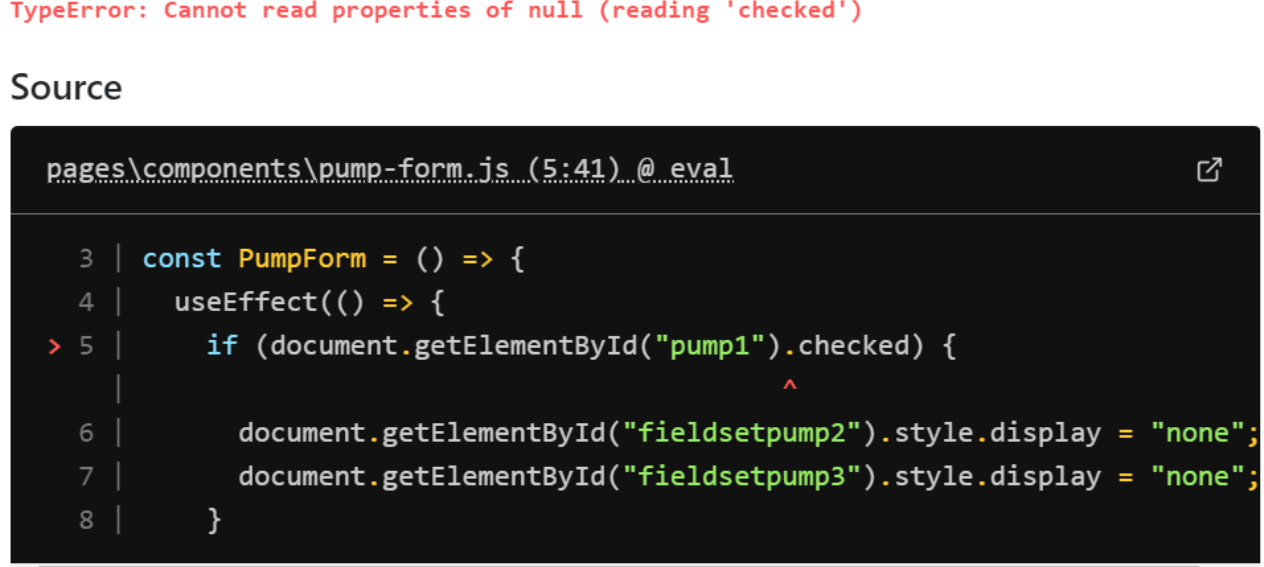
When designing landing pages or updating layouts, your page builder’s editor screen must build a bridge between your live WordPress database and the front-end rendering engine. If you launch the editing screen and it instantly drops a gray screen or freezes while throwing a Javascript console error pointing to editor.min.js, your design workflow is completely blocked.
Standard forum responses usually offer the generic advice to “clear your browser cache” or “re-save your permalinks.” This does not address the actual breakdown. This error indicates a strict script-timing or component-loading failure, where the editor script is searching for a layout structure that hasn’t loaded yet, causing the code to look for properties on a completely empty variable (null).
Below is the technical breakdown of why this Javascript crash occurs and the exact methods to clear the loading sequence and restore your editor panels.
The Error Snippet
Because this is a front-end script crash, your server’s backend error_log will usually stay completely clean. To see this trace, you must right-click on your frozen editor screen, select Inspect, and open the Console tab:
Plaintext
Uncaught TypeError: Cannot read properties of null (reading 'isEditMode')
    at Object.getSettings (editor.min.js?ver=3.x.x:2:1402)
    at Object.init (editor.min.js?ver=3.x.x:2:5820)
    at HTMLDocument.<anonymous> (editor.min.js?ver=3.x.x:2:9405)
Why This Happens (The Real Technical Cause)
The Javascript utility editor.min.js uses the internal method isEditMode to verify whether you are actively designing inside the backend editing space or simply viewing a published live web page. This controls whether layout settings, draggable handles, and widget configurations should be rendered onto the screen.
This front-end freeze occurs due to an Asynchronous DOM Initialization Race Condition or Corrupted Global Window Object parameters.
When you launch the page editor, the browser attempts to fire up your page builder’s scripts at the same time it loads your WordPress core metadata, global settings, and active theme frameworks. This error triggers due to two common structural conflicts:
- Aggressive JS Minification and Deferral: An optimization plugin (like WP Rocket, Autoptimize, or LiteSpeed Cache) is configured to “Defer Javascript” or “Minify JS Files.” This forces
editor.min.jsto execute too early in the browser loading cycle—before the primary HTML layout tree container (#elementoror#divi-builder) has completed building inside the browser’s Document Object Model (DOM). The script tries to read the edit state from a missing element container, hitsnull, and terminates immediately. - Dynamic Shortcode Dependency Collisions: The page you are trying to edit contains a third-party shortcode or nested custom widget (like an advanced slider, forms engine, or product matrix) that actively overrides or strips out the default WordPress global variables (
window.elementorCommonorwindow.wp) during script concatenation. The main script panics because its master options array was wiped from the browser’s memory buffer.
How to Fix It Safely (Step-by-Step Solutions)
Follow these direct technical optimization steps to insulate your builder scripts from performance modifications and fix the Javascript runtime path.
1.Isolate and Exclude Page Builder Scripts from Optimization Delay:
Step 1.
If you use an asset minification plugin, you must block it from restructuring the editor paths. Go to your optimization plugin’s settings panel (e.g., WP Rocket or LiteSpeed Cache) under File Optimization -> JS Exclusions and add these core matching strings to the exclude list:
Plaintext
/wp-content/plugins/elementor/assets/
/wp-includes/js/
editor.min.js
2.Force Script Execution Safety via functions.php:
Step 2.
If a third-party extension or your theme assets are loading tracking scripts too early and causing race conditions, you can inject a hook to enforce the correct execution order. Open your active child theme’s functions.php file and append this priority fix:
PHP
add_action( 'wp_enqueue_scripts', function() {
    // Check if the page builder edit framework is actively trying to spin up
    if ( isset( $_GET['action'] ) && 'elementor' === $_GET['action'] ) {
        // Force the system to dequeue low-priority scripts that disrupt initialization
        wp_dequeue_script( 'problematic-third-party-script-handle' );
    }
}, 99 );
3.Regenerate CSS Data Files and Re-Sync Layout Structures:
Step 3.
Sometimes, corrupted layout metadata stored in your temporary WordPress files causes the configuration script to return null. Go to your WordPress Dashboard sidebar -> Elementor -> Tools. Under the General tab, locate Regenerate CSS & Data and click the button. Once finished, click Sync Library immediately below it to re-align your data properties.
4.Regulate Browser Render Timing with Safe Mode Tracking:
Step 4.
If the screen remains locked, you can pinpoint the offending widget by forcing the site into an isolated editing window. Go to Elementor -> Tools -> Safe Mode and select Enable. Launch your layout screen again. If the editor opens successfully, your core setup is healthy, and you can safely delete or swap out the last custom shortcode widget added to the page design.