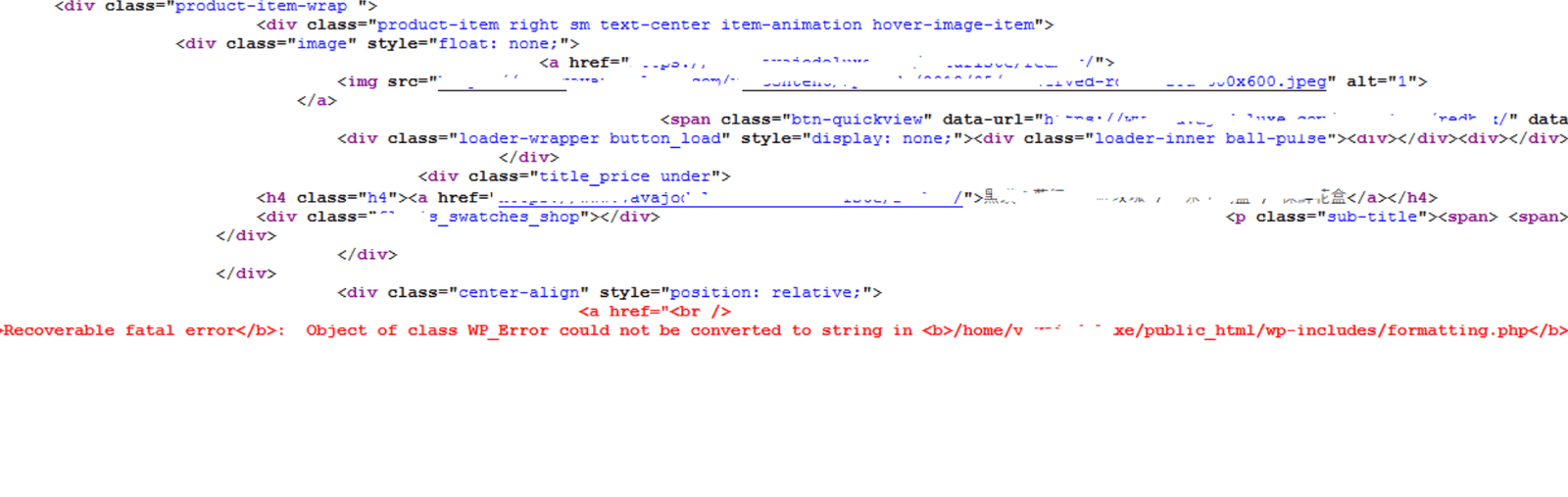
When browsing an online storefront or landing page, users expect a seamless visual layout. If a minor processing glitch occurs behind the scenes, a raw line of code text can suddenly bleed onto the very top of your public-facing header. This visually breaks your theme layout and instantly compromises customer trust.
When you check your system logs, you will find a PHP notice stating that an object of the WP_Error class could not be converted to a string. Standard forum answers often give the generic advice to “hide all PHP notices by disabling WP_DEBUG.” This is a superficial fix that hides the symptom while leaving your database connections and API endpoints fundamentally broken. This error indicates a strict data type mismatch where your template files are blindly trying to display a piece of text (like a category name, user greeting, or asset URL) that actually contains a structural system failure message.
Below is the technical breakdown of why this notice breaks onto your live pages and the exact methods to intercept and sanitize your data streams cleanly.
The Error Snippet
When a corrupted query or broken API handshake bleeds code text into the live HTML layout, your server’s error_log or front-end debug bar records this precise trace:
Plaintext
PHP Notice: Object of class WP_Error could not be converted to string in /wp-includes/formatting.php on line 1124
Stack trace:
#0 /wp-includes/formatting.php(1124): esc_attr()
#1 /wp-content/themes/custom-marketing-theme/header.php(32): get_term_link()
Why This Happens (The Real Technical Cause)
The file formatting.php houses core data sanitization engines like esc_html() and esc_attr(). These functions are designed to accept primitive data strings, strip away malicious script vectors, and return clean text safe for browser rendering.
This public-facing notice triggers due to an Unchecked Internal Failure Return passing into a styling wrapper.
Many native functions (such as get_term_link(), wp_remote_get(), or user meta calls) are designed to return a string when successful. However, if a query fails—for instance, if a category ID doesn’t exist, an external API endpoint times out, or a database index drops—the function does not return a blank string. Instead, it returns a data-heavy WP_Error object containing the error codes and failure logs.
If your active theme’s header.php file or a custom tracking snippet immediately passes that return value straight into a text printing function (like echo esc_attr($link);) without validating it first, the PHP interpreter attempts to flatten the complex object into a printable text string. Because PHP cannot natively convert a multi-dimensional class object into a simple text string, it throws a notice, halts the HTML parsing chain, and dumps the raw warning text directly into your site’s header stream.
How to Fix It Safely (Step-by-Step Solutions)
Follow these direct technical steps to wrap your frontend data calls in structural validation checks and safely silence public warnings.
Fix 1: Implement an Explicit Type Validation Check in Your Layouts
If the error trace identifies a specific line inside your active theme files (such as header.php or sidebar.php), you must add a type safety guard using the native function is_wp_error(). This ensures the system only prints data if the background operation actually succeeded.
Open the culprit file via FTP or File Manager, locate the broken line, and wrap the display logic using this defensive strategy:
PHP
// 1. Fetch the data assignment layer safely
$term_link = get_term_link( $current_category_id );

// 2. Type Guard: Check if the return variable is a system failure object
if ( is_wp_error( $term_link ) ) {
    // Fallback path: Quietly extract the error message for your private logs
    error_log( 'Header Data Link Error: ' . $term_link->get_error_message() );

    // Assign a safe fallback string or leave blank so the public frontend stays clean
    $safe_render_string = '#';
} else {
    // Success path: The data type is verified as a safe string
    $safe_render_string = esc_url( $term_link );
}

// 3. Print the verified string asset cleanly inside your HTML node
echo esc_attr( $safe_render_string );
Fix 2: Configure Server Execution Directives to Suppress Public Output
To guarantee that background script notices never bleed onto your public-facing pages during high-traffic sales or background updates, you must configure your server to log errors privately while keeping the public layout pristine.
1.Access your core application configuration rules:
Step 1.
Log into your server file architecture using FTP or a hosting File Manager. Open the wp-config.php file located at the root of your public directory.
2.Deactivate public debug display matrices:
Step 2.
Scroll down to the bottom of the file to locate your debugging constants. Remove any basic define('WP_DEBUG', true); rows and replace them with this enterprise logging cluster:
PHP
// Force enable the internal background tracking engine
define( 'WP_DEBUG', true );

// Prevent raw code parameters from rendering directly onto the live HTML screen
define( 'WP_DEBUG_DISPLAY', false );
@ini_set( 'display_errors', 0 );

// Route all system alerts silently to a private background log file
define( 'WP_DEBUG_LOG', true );
3.Verify the integrity of your hidden error repository:
Step 3.
Save the file and refresh your homepage. The ugly text layout block will vanish completely. To track future occurrences privately, you can safely monitor the generated log file located at /wp-content/debug.log using your file viewer tools.