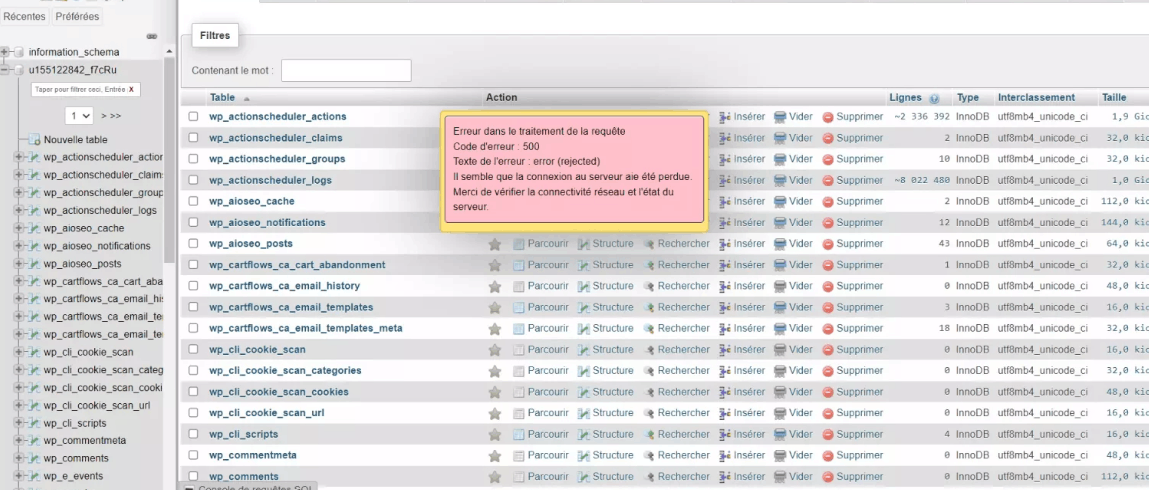
When a core database table crashes, your website instantly goes offline. Instead of your storefront or landing pages, visitors and administrators are greeted with a raw database error page.
If you inspect your server’s backend debug files, you will find an explicit wp_options crash error. Standard online advice often suggests “restoring your entire site from an old backup.” This is an extreme response that can cause you to lose recent orders, user accounts, and design progress. This error indicates a structural file corruption that typically happens when your hosting server suddenly runs out of disk storage space or hits an IOPS memory limit during a heavy write operation.
Below is the technical reason why your configuration table drops and the exact methods to repair the table structure and restore your site instantly.
The Error Snippet
When the database subsystem encounters a corrupted configuration table index, it outputs this precise log statement:
Plaintext
WordPress database error Table './mydb_wp/wp_options' is marked as crashed and should be repaired for query SELECT option_value FROM wp_options WHERE option_name = 'home' LIMIT 1
Why This Happens (The Real Technical Cause)
The wp_options table is the most heavily utilized table in your entire WordPress database architecture. It stores your site URLs, active plugin manifests, transient security keys, and theme configuration layouts. Every page load triggers dozens of read and write actions against this single table cluster.
This crash occurs due to a Write-Interrupt File Corruption Block within your server’s storage layers.
[Server Storage Space: 100% Full]
               ▲
               │  (Data truncation happens here)
               ▼
[Active PHP Script Trying to Write Transient Data to wp_options]
               ▲
               │  (Write loop fails midway)
[MySQL File Index Pointer (.MYI / .IBD File Structure) Breaks]
When an active plugin tries to update a configuration row (like saving an optimized layout string or generating an automated security token) at the exact microsecond your hosting storage volume hits 100% capacity, the database engine cannot finish writing the data. The server truncates the file mid-stream, breaking the index pointer files (such as .MYI for MyISAM or .IBD tables). MySQL immediately locks the table and flags it as “crashed” to prevent further data corruption.
How to Fix It Safely (Step-by-Step Solutions)
Follow these direct procedural steps to clear up server disk limits and run native database repair utilities to rebuild your table structure safely.
1.Free up emergency server disk space:
Step 1.
Before running any repair utilities, you must clear space on your server, or the repair scripts will fail. Log into your hosting panel (cPanel, RunCloud, or Plesk) or connect via SSH. Navigate to your /wp-content/ directory and delete large, stale error log files (debug.log), clear out old uncompressed zip backups, or purge your staging site cache files until your disk usage drops below 90%.
2.Activate the built-in WordPress automatic repair gate:
Step 2.
WordPress has a built-in automated maintenance engine designed to fix broken table structures without requiring direct database access. Use an FTP client or File Manager to open your wp-config.php file located in your root directory. Append this explicit handling line near the very top:
PHP
define( 'WP_ALLOW_REPAIR', true );
Save the file, then open your web browser and navigate directly to this maintenance URL:
(Replace yourdomain.com with your actual site URL). Click the button labeled “Repair Database”. The script will automatically scan and rebuild your broken index chains.
3.CRITICAL: Remove the repair gate from wp_config.php:
Step 3.
Once the tool successfully repairs your tables and your site loads normally, go back into your wp-config.php file and delete the WP_ALLOW_REPAIR line entirely. Leaving this setting active is a major security risk because it allows unauthorized public users to trigger database maintenance commands on your server.
4.Alternative: Rebuild table indexes via phpMyAdmin terminal:
Step 4.
If the WordPress native script fails to execute, you can force a deep repair using your server’s primary database management engine. Open phpMyAdmin, click on your target database, and check the box next to the wp_options table line. Scroll to the bottom dropdown menu, select “Repair table”, and run the operation.
(This forces MySQL to completely discard the broken index pointer and regenerate a clean tracking sequence from your raw option data arrays instantly).