This is one of the most alarming errors a WordPress administrator or developer can face. Instead of a styled webpage, your browser displays a single line of raw text: Call to undefined function wp_cache_get(). This means your site is completely down, locking out both visitors and administrators from the backend dashboard.
Standard forum advice typically tells you to “reinstall WordPress core” or “reset your plugins folder via FTP.” This is ineffective because the issue is not caused by corrupted core files. This fatal error indicates a Bootstrap Initialization Failure where your persistent object caching mechanism (like Redis or Memcached) dropped its connection or corrupted its drop-in file, leaving WordPress unable to load its fundamental memory helper functions.
Below is the technical breakdown of why this crash occurs and the exact methods to bypass the broken cache layer and restore your site instantly.
The Error Snippet
When WordPress fails to initialize due to an object cache failure, your server’s backend error_log or browser debug screen will output this precise stack trace:
Plaintext
PHP Fatal error: Uncaught Error: Call to undefined function wp_cache_get() in /wp-includes/load.php:732
Stack trace:
#0 /wp-includes/load.php(641): wp_not_installed()
#1 /wp-settings.php(170): wp_set_wpdb_vars()
#2 /wp-config.php(90): require_once('/wp-settings.php')
#3 /wp-login.php(12): require('/wp-config.php')
Why This Happens (The Real Technical Cause)
The function wp_cache_get() belongs to the WordPress object cache API. Under normal operations, WordPress loads this function automatically very early in its boot cycle inside /wp-includes/cache.php.
This fatal error occurs due to an Early Boot Sequence Interruption caused by a corrupted or orphaned object-cache.php drop-in file.
When you use an object caching plugin (such as Redis Object Cache or LiteSpeed Cache), it places a custom file named object-cache.php directly into your /wp-content/ folder. This file instructs WordPress to bypass its standard database lookups and read data straight from your server’s RAM (Redis or Memcached).
WordPress execution breaks if:
- The Core RAM Cache Service Crashes: Your hosting server’s background Redis or Memcached service suddenly restarts, runs out of memory, or drops its socket connection.
- Premature Class Loading: The custom
object-cache.phpscript executes too early during the WordPress bootstrap sequence—specifically beforeload.phphas completed establishing core global variables. The drop-in script attempts to call database or option routines, fails to find them, and triggers an early exit wrapper (wp_die()). Becausewp_die()relies onwp_cache_get()to process page layouts, and the caching core hasn’t loaded yet, PHP crashes instantly.
How to Fix It Safely (Step-by-Step Solutions)
Follow these direct technical steps to safely disable the broken cache layer via FTP or file management tools and force WordPress back online.
Fix 1: Manually Bypass the Cache Drop-In via File Manager
Since your WordPress dashboard is inaccessible, you must bypass the caching script directly inside your server directory. This immediately forces WordPress to use standard MySQL database operations instead of looking for RAM assets.
1.Access your server file directory:
Step 1.
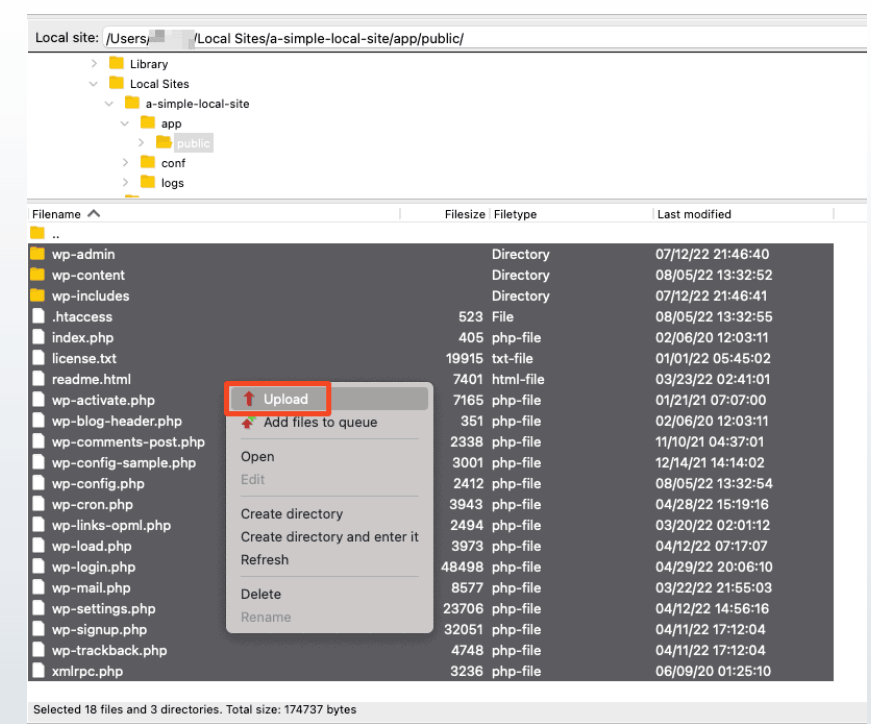
Log into your server using an FTP client (like FileZilla) or open your hosting control panel’s File Manager. Navigate to your site’s root directory (public_html).
2.Locate the custom drop-in file:
Step 2.
Navigate into the wp-content folder. Look for a file named exactly object-cache.php.
(Note: Do not look inside wp-content/plugins/; this file sits directly at the root of the wp-content directory).
3.Rename the drop-in file to disable it:
Step 3.
Right-click the file and rename it to object-cache.php.bak. This safely breaks the linkage, forcing WordPress to instantly ignore the file during its initialization sequence.
4.Deactivate the cache flag in configuration rules:
Step 4.
Go back to your root directory, open your wp-config.php file, and look for this line:
PHP
define( 'WP_CACHE', true );
Change true to false, save the file, and refresh your browser. Your live site and admin dashboard will load instantly.
Fix 2: Flush Your Server’s Memory Daemon via SSH
If you have verified your files are clean but your server continues to throw the error due to stuck memory operations, you must flush your server’s caching daemon directly from the command line.
Open your terminal, connect to your server via SSH, and execute the matching daemon flush sequence:
- For Redis Servers:Bash
redis-cli flushall - For Memcached Servers:Bash
echo "flush_all" | nc localhost 11211 - Restart the PHP compiler pool to clear stuck system mappings:Bash
sudo systemctl restart php-fpm
Once your memory daemons are cleared, you can safely log into your WordPress dashboard, navigate to your caching plugin settings, and click Re-enable Object Cache to cleanly regenerate a fresh object-cache.php script.