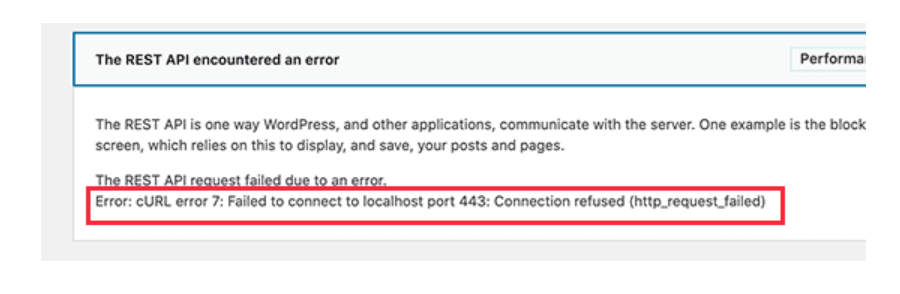
A healthy server ecosystem requires seamless internal communications. When your WordPress site needs to talk to its own database to run automated background processes—such as running cron jobs, executing security checks, or applying automatic core updates—it opens an internal network loopback. If this loopback fails, your automation paralyzes, blocking critical security updates and tanking your site’s health score.
When you check your site diagnostic logs or Site Health panel, you will find an explicit cURL error 28 indicating an internal network timeout. Standard developer forum threads usually give the generic advice to “ask your host to upgrade your PHP version.” This is unhelpful because it misdiagnoses a networking blockage as a code framework version issue. This error indicates a structural Server-Level Loopback Request Failure where your server’s security firewall or DNS configuration is blocking the machine from processing its own web traffic.
Below is the technical reason why this loopback link snaps and the exact configuration changes required to clear the network paths.
The Error Snippet
When WordPress fails to complete a background diagnostic loop or trigger an automated utility cron job, your Site Health manager or wp-content/debug.log will register this precise trace:
Plaintext
Error: cURL error 28: Connection timed out after 10000 milliseconds (http_request_failed)
Endpoint: https://techbic.site/wp-json/wp/v2/types/post?context=edit
Trace:
#0 /wp-includes/class-wp-http-curl.php(312): wp_remote_get()
#1 /wp-includes/class-wp-http.php(610): WP_Http->request()
Why This Happens (The Real Technical Cause)
To process asynchronous tasks, WordPress functions as both a client and a server. It fires a standard outbound browser request using the cURL software library, routing it right back to its own web address (e.g., querying its own /wp-json/ REST API paths).
This communication timeout occurs due to an Asynchronous Loopback Restriction inside your networking stack.
When this request is initiated, three common infrastructure bottlenecks can trigger the timeout:
- Server Firewall Hairpin NAT Restrictions: Security layers like
mod_security, CSF (ConfigServer Security & Firewall), or custom Nginx rules analyze traffic patterns. If the server does not support “NAT loopback” (or hairpinning), the firewall sees a massive flood of requests originating from its own internal IP address directed at its public web port. It flags this behavior as a potential Denial-of-Service (DoS) attack, dropping the connection packets and forcing cURL to wait until it hits its 10-second ceiling. - DNS Resolution Deadlocks: When cURL queries your domain name, it asks the server’s local nameserver (
/etc/resolv.conf) to resolve the IP address. If the local nameserver configuration is slow, misconfigured, or loopback tracking is disabled, the system times out before it can translate the domain name into a working IP. - PHP-FPM Worker Pool Exhaustion: If your site experiences a sudden burst of dynamic traffic, all available background PHP processing slots (workers) become fully occupied. When WordPress attempts to open a secondary loopback connection, the request joins the back of the queue. If a worker doesn’t free up within 10,000 milliseconds, the script times out.
How to Fix It Safely (Step-by-Step Solutions)
Follow these direct procedural steps to whitelist local IP routing tables and increase script limits to bypass the network blockage.
Fix 1: Explicitly Map the Loopback IP inside Your Server’s Hosts Table
If your server’s firewall or public DNS manager (like Cloudflare) is blocking local scripts from routing outbound and back in, you can instruct your server to bypass the external web entirely. By updating your local hosts table, you force the machine to look directly inside its own internal loopback address (127.0.0.1).
1.Access your server environment via terminal:
Step 1.
Open your command line application and log into your server as a root user using SSH credentials.
2.Open the network host configuration file:
Step 2.
Execute the following command to load your server’s local routing map inside the Nano text editor:
Bash
sudo nano /etc/hosts
3.Inject a direct local domain map routing line:
Step 3.
Scroll to the base of the file and add this explicit mapping rule, replacing techbic.site with your actual domain name:
Plaintext
127.0.0.1 techbic.site
(This instructs the server’s internal cURL library to talk directly to the local machine, bypassing external firewalls, firewalls, and public DNS lookups entirely). Save and exit (Ctrl + O, then Ctrl + X).
Fix 2: Elevate cURL Timeout Ceilings and Optimize Your Optimization Layer
If your server is healthy but simply requires a wider execution window to process heavy layout configurations during background loops, you can implement a programmatic filter to safely lift the cURL execution restrictions.
Open your active child theme folder, open functions.php, and append this timeout expansion filter to the base:
PHP
// 1. Hook into the core WordPress HTTP request arguments array
add_filter( 'http_request_args', function( $args, $url ) {
    // 2. Check if the outbound connection is targeting your internal REST API loop
    if ( false !== strpos( $url, '/wp-json/' ) ) {
        // Expand the strict 10-second ceiling to a more forgiving 30-second window
        $args['timeout'] = 30;
    }
    return $args;
}, 10, 2 );

// 3. Simultaneously adjust the internal cron request limits
add_filter( 'cron_request', function( $cron_request ) {
    $cron_request['args']['timeout'] = 30;
    return $cron_request;
});
Once saved, navigate to your site’s performance optimization suite (such as LiteSpeed Cache settings -> Advanced), locate the option labeled “Object Cache”, and ensure that persistent database connection reuse is enabled. This reduces the server processing overhead during internal background loops, preventing future execution bottlenecks across your automated update systems.