Building customized product listings, portfolio archives, and dynamic shop front pages relies heavily on advanced query loops. If your custom shop front page suddenly drops a critical crash screen or a blank space where your product grids should be, your storefront’s product discovery path is completely cut off.
If you inspect your server logs, you will find an explicit fatal error indicating that a core Loop Builder module class is missing. Standard forum advice usually tells you to “re-save your permalinks” or “check for plugin conflicts.” This misses the technical cause. This error indicates a strict synchronization failure or version mismatch between the free base page builder plugin and its premium pro extension, causing your custom design loop assets to look for a core class path that isn’t mapped properly.
Below is the technical breakdown of why this loop grid crash happens and the exact methods to realign your plugin assets and restore your storefront grids.
The Error Snippet
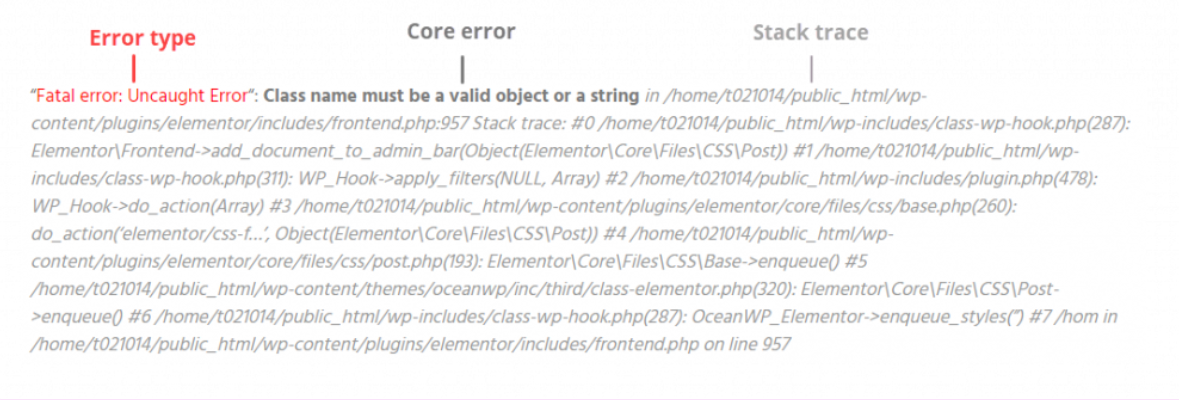
When a customized shop front page, dynamic collection loop, or category grid fails to initialize on the front-end, your server’s error_log will capture this precise trace:
Plaintext
PHP Fatal error: Uncaught Error: Class 'ElementorPro\Modules\LoopBuilder\Module' not found in /wp-content/plugins/elementor-pro/modules/theme-builder/module.php:124
Stack trace:
#0 /wp-content/plugins/elementor-pro/core/modules-manager.php(78): ElementorPro\Modules\ThemeBuilder\Module->__construct()
#1 /wp-content/plugins/elementor-pro/plugin.php(115): ElementorPro\Core\ModulesManager->__construct()
Why This Happens (The Real Technical Cause)
The Loop Grid and Loop Carousel widgets rely directly on the LoopBuilder\Module class to compile custom skin templates, bind database query rows (like WooCommerce product catalogs), and inject them cleanly into your theme sections.
This fatal crash is triggered by two specific architectural alignment failures:
- Asynchronous Core Update Desynchronization: You updated the free base version of your page builder plugin to a major new release, but left your premium Pro extension on an older version (or vice-versa). The modern base core attempts to initialize the Loop Grid layouts using a restructured namespace map, but the older Pro extension is still looking for the class under the historic file directory path.
- Corrupted Core Asset Manifest Maps: When automated background updates run, the server may experience a temporary memory drop or execution timeout. The update process successfully overwrites the file folder, but fails to rebuild the plugin’s internal optimization manifest arrays. The engine looks for the class namespace, hits a blank mapping reference, and triggers a hard fatal error to prevent script memory corruption.
How to Fix It Safely (Step-by-Step Solutions)
Follow these technical procedures to sync your core plugin versions, flush the system component maps, and bring your dynamic listings back online cleanly.
1.Align the Plugin Versions via the Updates Tab:
Step 1.
Because this error stems from a version mismatch between the twin builder layers, go to your WordPress Dashboard sidebar and navigate to Dashboard -> Updates. Click Check Again to refresh your site’s remote file repository data. Ensure both your Free version and Pro extension are updated to their matching contemporary stable versions.
2.Force Component Mapping Re-generation:
Step 2.
If both plugins are fully updated but the error persists, you must force the system to rebuild its asset layout manifests. Go to Elementor -> Tools. Under the General tab, locate Regenerate CSS & Data and click the button. Once that completes, click Sync Library directly below it to flush old data models out of your temporary database rows.
3.Inject an Autoloader Safety Bridge in functions.php:
Step 3.
If you are running an older premium theme layout that explicitly requires specific legacy plugin versions and you cannot update them immediately without breaking alternative designs, you can implement a defensive class fallback bridge. Open the functions.php file inside your active child theme directory and append this autoloader map at the very base:
PHP
add_action( 'plugins_loaded', function() {
    // If the Pro plugin framework is active but the modern loop builder class isn't registered
    if ( defined( 'ELEMENTOR_PRO_VERSION' ) && ! class_exists( 'ElementorPro\Modules\LoopBuilder\Module' ) ) {
        $fallback_module = WP_PLUGIN_DIR . '/elementor-pro/modules/loop-builder/module.php';
        if ( file_exists( $fallback_module ) ) {
            include_once $fallback_module;
        }
    }
}, 5 ); // Priority 5 ensures the fallback maps into memory before layout modules execute
4.Flush Server Memory and Re-index Object Cache:
Step 4.
Log into your hosting server configuration control panel (or your site optimization plugin dashboard) and click Flush/Reset PHP OPcache. If you utilize an object cache layer like Redis or Memcached, execute a full clear by running redis-cli flushall via terminal or clicking Purge All Object Cache inside your optimization settings panel to load the updated class rules cleanly across your live shop fronts instantly.