A responsive, fast-loading storefront is critical for converting mobile traffic into completed checkouts. If a user lands on your site and tries to open the mobile navigation bar or click an “Add to Cart” button, but the interaction is completely dead, your sales pipeline is broken.
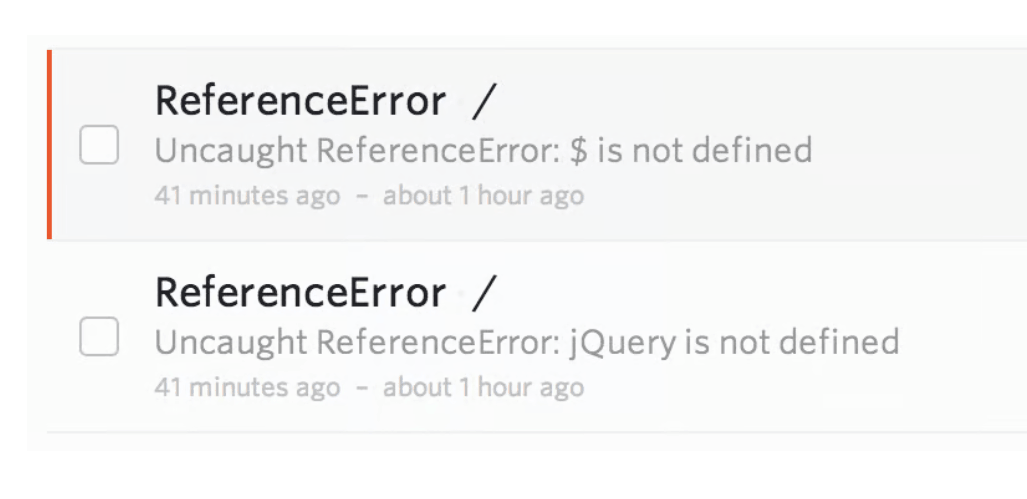
When you check your browser’s diagnostic developer tools, you will find an explicit JavaScript error stating jQuery is not defined. Standard optimization guides often suggest simply “deactivating your optimization tool” or “turning off JavaScript minification.” This is a superficial workaround that destroys your site loading scores. This error indicates a structural Script Loading Sequence Conflict where your front-end optimization engine (like LiteSpeed Cache) is loading your page interactions before loading the core jQuery framework itself.
Below is the technical breakdown of why this script race condition occurs and the exact methods to adjust your optimization parameters and restore your mobile menu functionality instantly.
The Error Snippet
Because this is a client-side layout freeze, your server’s internal error_log will usually stay completely silent. To capture this error, right-click on your broken mobile screen view, select Inspect, and open the Console tab:
Plaintext
Uncaught ReferenceError: jQuery is not defined
    at (index):145:1
    at litespeed-cache/assets/js/webfontloader.min.js?ver=6.x:2:342
Why This Happens (The Real Technical Cause)
The core library jquery.min.js is the primary foundation script upon which almost all e-commerce mobile menus, product quick-views, and AJAX add-to-cart animations are built. These individual interactive tools are written as “jQuery plugins,” meaning they cannot run unless the primary library is already sitting active in the browser’s memory buffer.
This frontend execution failure is triggered by an Asynchronous Script Optimization Race Condition.
To achieve top-tier page speed performance scores, optimization engines like LiteSpeed Cache (LSCache) use two heavy processing features: Defer JavaScript and Combine JavaScript.
When these features are turned on globally without defensive exclusions, the optimization engine intercepts the default WordPress loading queue. It packages the primary jquery.min.js file into a combined bundle or delays its download until the browser finishes rendering the visual HTML layouts.
However, if your theme layouts contain inline scripting nodes or standalone asset files (like a mobile layout controller or element slider) that try to initialize an interaction immediately as the page loads, they look into the browser context for the global jQuery object identifier. Because the core framework library has been delayed or placed at the bottom of the page, the browser hits an unmapped reference pointer, panics, throws a hard ReferenceError, and shuts down all remaining interaction scripts.
How to Fix It Safely (Step-by-Step Solutions)
Follow these direct procedural steps to protect your core framework paths from optimization delays without losing your high speed performance scores.
1.Exclude Core jQuery from Deferral and Delay Settings:
Step 1.
You must tell your cache engine to load the fundamental script framework synchronously in the page header so that your mobile scripts have access to it from millisecond one. Log into your WordPress administrative dashboard and navigate to the sidebar options path LiteSpeed Cache -> Page Optimization -> JS Settings.
2.Apply strict asset exclusions to the layout engine:
Step 2.
Locate the configuration field labeled “JS Excludes” or “JS Deferred Excludes”. Paste the following core filename handles into the rule box (one per line) to shield them from optimization delays:
Plaintext
jquery.js
jquery.min.js
/wp-includes/js/jquery/
If you have the “Load JS Deferred” or “Delay JS Execution” toggles turned on, verify that “jQuery Exclude” is set to ON. Click Save Changes.
3.Inject a JavaScript Fallback Wrapper into functions.php:
Step 3.
If your theme runs inline script code snippets that continue to fire too early despite your caching rules, you can wrap them in a native browser event listener. This forces the inline code to sit quietly and wait until the document tree and jQuery have completely loaded. Append this filter to the bottom of your child theme’s functions.php file:
PHP
add_filter( 'litespeed_buffer_finalize', function( $content ) {
    // Find raw inline scripts calling jQuery directly and hook them safely into a DOM loading event wrapper
    return str_replace( 'jQuery(document).ready', 'document.addEventListener("DOMContentLoaded", function(){jQuery(document).ready', $content );
});
4.Regenerate your site’s combined file system maps:
Step 4.
Navigate back to the top of your admin dashboard screen, click on the LiteSpeed icon wrapper in the top admin toolbar menu, and select Purge All. Then, click Purge All – CSS/JS Cache. This forces LSCache to immediately scrap the old broken script arrays and rebuild clean, working files, restoring your mobile menus and add-to-cart responses instantly.